Learn how to use Conversion Tracker in the Yaleo Console to measure campaign success attribute conversions and optimize your advertising budget data.
When you invest advertising budget in Yaleo, you want to know what your campaign actually achieves. That is exactly where Conversion Tracker helps: it shows whether a click leads to a valuable action – for example, a purchase, a registration or a contact request. In this article, we show you how to set up Conversion Tracker in the Yaleo Console.
One of the most important indicators is the conversion rate. It shows how many people perform a desired action after an ad contact or click. Such an action can be, for example, a purchase, a registration, a download or a contact request. In short: a conversion occurs when a person does something that is valuable to the advertiser. To ensure that these conversions can be measured reliably and attributed to the right campaign, clean conversion tracking is required. It makes it possible to understand which campaign or creative brought a person to the website – and whether this later resulted in a defined conversion.
This is important because not every creative that generates many clicks automatically leads to many conversions. Conversely, a creative with fewer clicks may bring particularly valuable users to the site. Conversion tracking therefore helps you better understand the performance of your campaign: Which creatives really work? Where is your budget being used efficiently? And where is there potential for optimization? This makes conversion tracking the basis for data-driven decisions and sustainable campaign success. In this article, we explain step by step how to set up a Conversion Tracker in the Yaleo Console – and which tracking method is considered state of the art today.
In the first step, you create a Conversion Tracker in the Yaleo Console. There are two ways to do this:
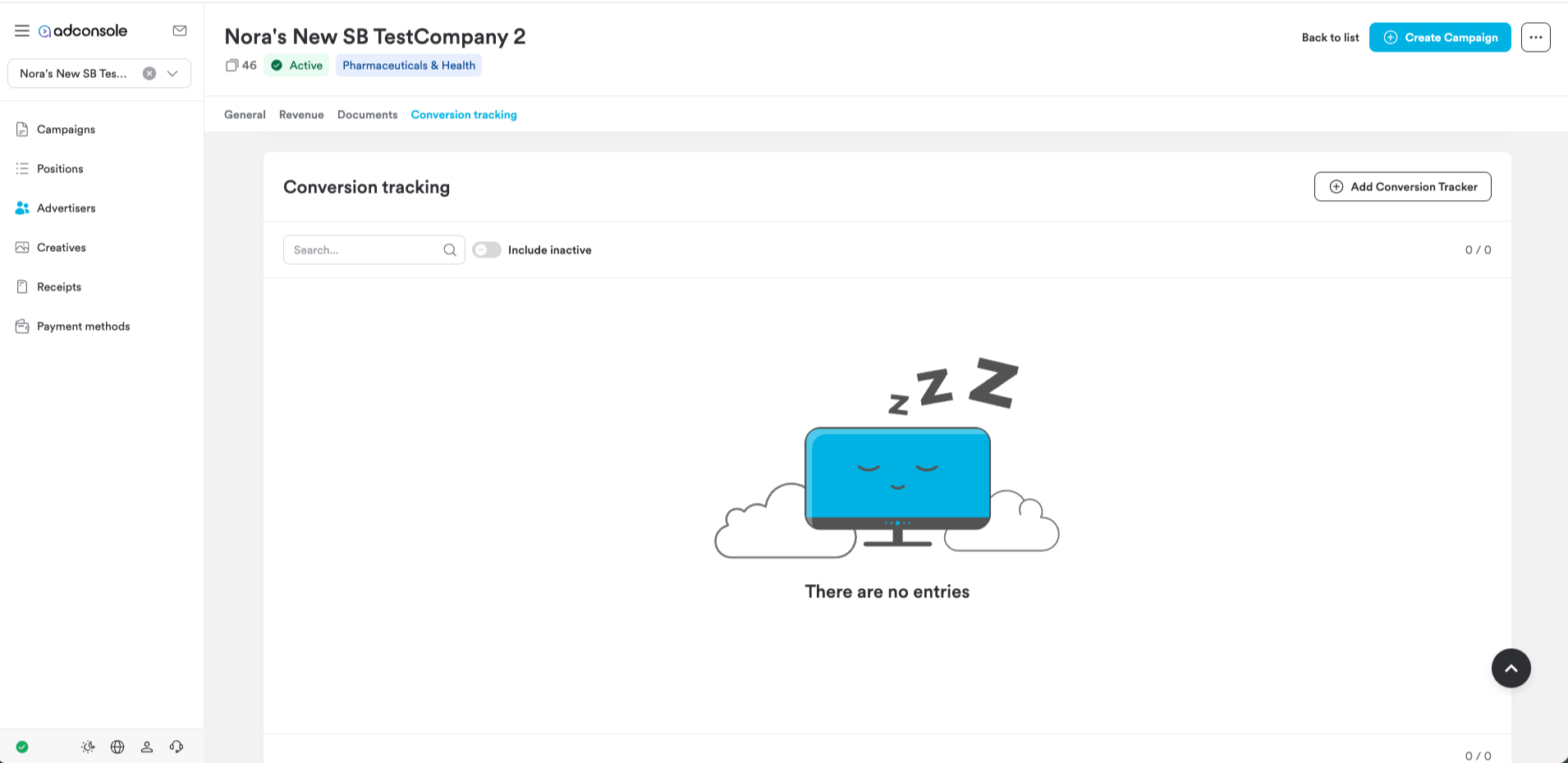
If you want to set up tracking centrally for an advertiser, open the “Edit Advertiser” screen and click “Add Conversion Tracker” in the top right corner.
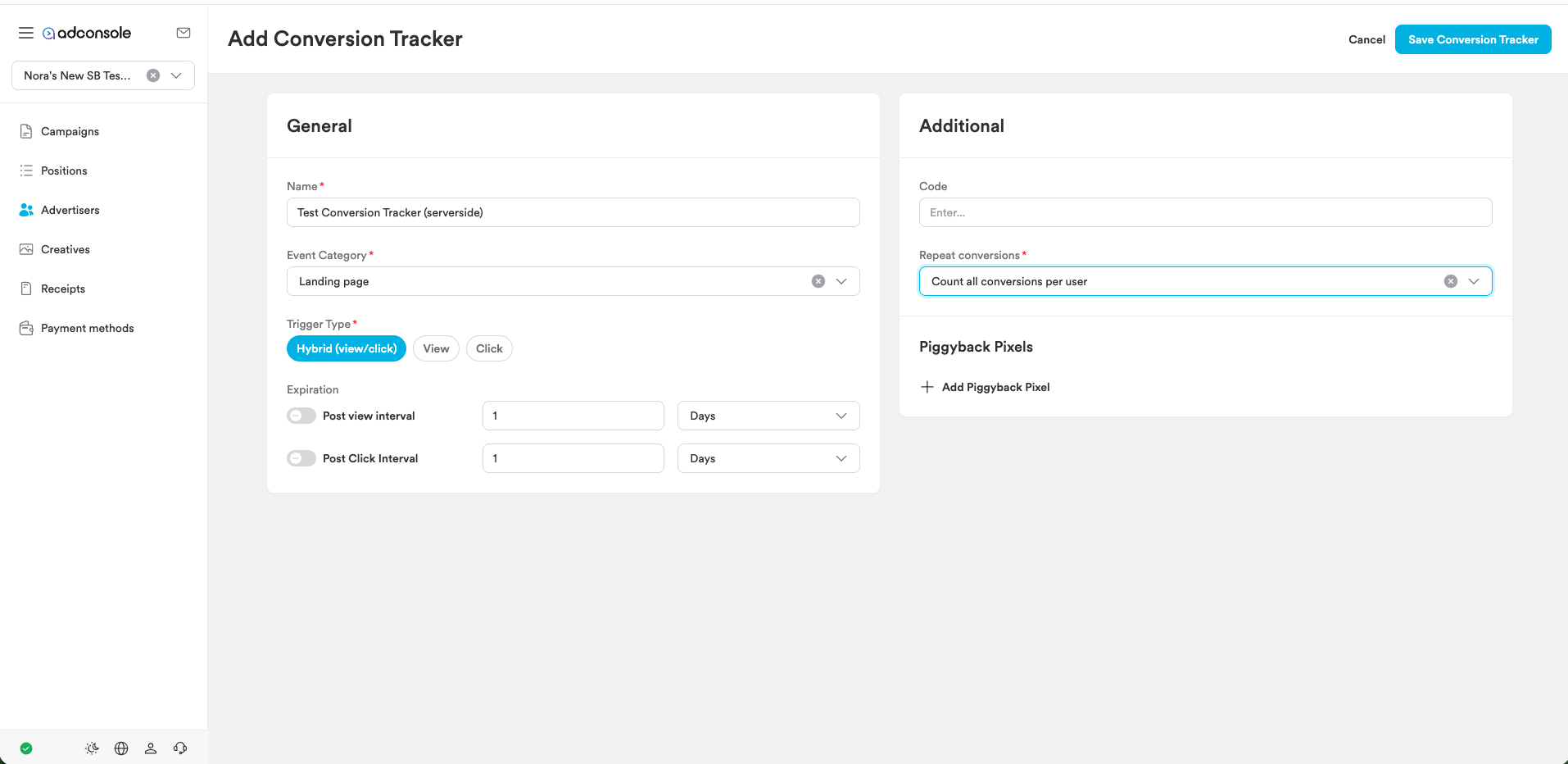
Give your tracker a name and select an event category:
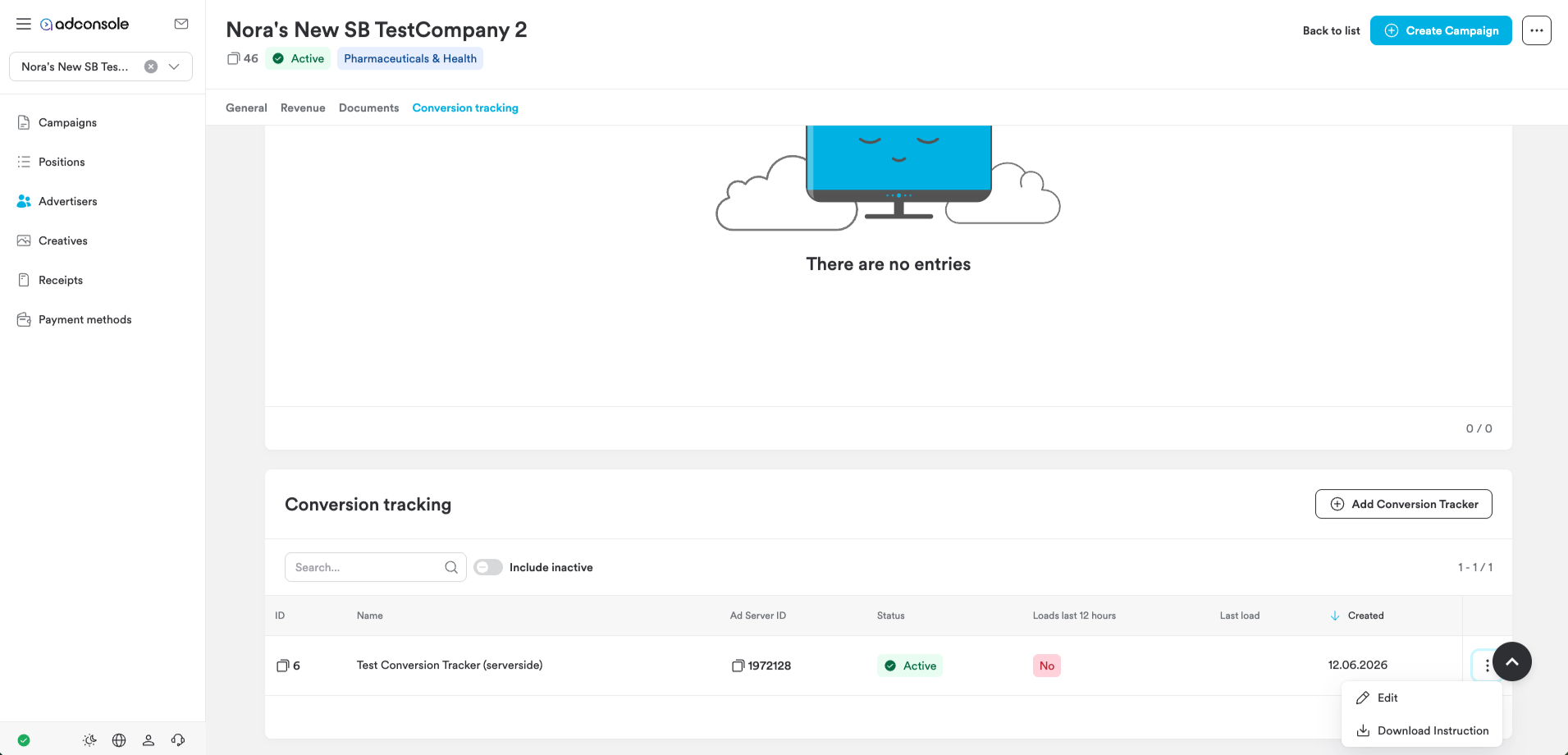
Once you have created the tracker, you can download the instructions for integrating the tracker on your landing page under “Download Instruction”:
You can also create the tracker directly during campaign creation via the “Create Campaign” screen.
you have created the Conversion Tracker, you will receive instructions for the technical integration. There are two options for this. We recommend the first option: the Server-Side Conversion Pixel, also known as server-to-server tracking.
Server-Side Conversion Pixel
Many browsers are increasingly restricting classic cookie tracking or blocking it entirely. That is why server-side tracking is now the more reliable solution. It works independently of users’ cookie settings and ensures that conversions are recorded as accurately as possible and attributed to the correct campaign.
The setup is carried out in two steps:
1. Add the tracking parameter to the destination URL
First, add the following parameter to your creative’s destination URL:
&token=${SSP_DATA}
The destination URL is the URL users are directed to when they click on your creative. The parameter ensures that an individual token is passed along with the click. This token is automatically replaced by Microsoft Advertising with the actual value.
Important: The parameter must be appended to the creative’s destination URL. Only then can a later conversion be correctly attributed to the original click, creative and corresponding campaign.
2. Send the conversion to the server
As soon as the desired conversion takes place – for example, a purchase, a registration or a contact request – it is registered server-side. To do this, the following URL is called:
https://secure.adnxs.com/sspx?id=1972128&sspdata=${SSP_DATA}
Here too, ${SSP_DATA} is replaced by the individual token. This allows the system to identify which previous click the conversion belongs to. You can find more technical information in the official Microsoft Advertising documentation:
https://learn.microsoft.com/de-ch/xandr/invest/server-side-conversion-pixels
Classic Conversion Pixel
If server-side tracking is not possible, you can alternatively use the classic Conversion Pixel. However, this method is based on cookies. Since many browsers are increasingly restricting or blocking cookies, measurement accuracy is generally lower than with server-to-server tracking.
The pixel is triggered as soon as a conversion is registered:
<!-- Conversion Pixel - DO NOT MODIFY --> <img src="https://secure.adnxs.com/px?id=1972128&t=2" width="1" height="1" /> <!-- End of Conversion Pixel →
Whenever possible, we recommend the server-side option.
Once the Conversion Tracker has been set up and technically integrated, you can link it to your campaign.
To do this, first create your campaign in the Yaleo Console. Then add the destination URL of your landing page to the creative. With server-side tracking, it is important that you do not forget the tracking parameter:
&token=${SSP_DATA}
This parameter ensures that later conversions can be attributed to the correct campaign and the correct creative.
Finally, add the Conversion Tracker to the campaign. As soon as the campaign is live, the defined conversions are automatically recorded and displayed in the Yaleo Console.
Properly set up conversion tracking helps you better understand the success of your campaigns and use your budget in a more targeted way. You can see not only which creatives generate clicks, but also which of them lead to valuable actions – for example, a purchase, a registration or a contact request.
Our recommendation: use server-to-server tracking whenever possible. This method is less dependent on cookies and delivers more reliable data even when browsers restrict classic cookie tracking.
Two points are particularly important: the tracking parameter must be added to the creative’s destination URL, and the Conversion Tracker must be added to the campaign. This ensures that conversions can be measured correctly and attributed to the right campaign.
Need support? The Yaleo team will be happy to help.